In previous posts here, I described using Clifford algebras for representing points and rotations. I was never very satisfied with this because the translations were still tacked on rather than incorporated in the algebra. To represent geometric objects, you need to track two Clifford multivectors: one for the orientation and another for the offset.
About two weeks ago, I found David Hestenes’s paper Old Wine in New Bottles: A new algebraic framework for computational geometry. In that paper, he describes a way to use Clifford Algebras to unify the representation of points, lines, planes, hyperplanes, circles, spheres, hyperspheres, etc. This was a big bonus. By using a projective basis, we can unify the orientation and offset. By using a null basis, we can bring in lines, planes, hyperplanes, circles, spheres, and hyperspheres.
The null basis ends up giving you a point at infinity. Every line goes through the point at infinity. None of the circles do. But, if you think of a line as a really, really big circle that goes through infinity, now you have unified lines and circles. Circles and lines are both defined by three points in the plane. (Technically, you can define a line with any three collinear points, but then you need to craft a point collinear to the other two. The point at infinity is collinear with every line. Further, such things could be seen as flattened circles having finite extent (diameter equal to the distance between the furthest apart of the three points) rather than an infinite line.)
So, I need to use Clifford algebras with a projective and null basis. All of the playing I previously did with Clifford algebras was using an orthonormal basis.
What is a basis?
To make a Clifford algebra, one starts with a vector space. A vector space has a field of scalars (real numbers, usually) and vectors. You can multiply any vector by a scalar to get another vector. And, if  and
and  are scalars and
  is a vector, then
  . And, of course, we want
  (in fact, even if
  weren’t exactly, we’re always going to be multiplying by at least
  , so we can recast our thinking to think about any place we write ).
You can add together any two vectors to get another vector. Further, this addition is completely compatible with the scalar multiplication so that  and
and  . This of course means that every vector has a negative vector. Further
  for all vectors and
  . This is the distinguished vector called the zero vector. The sum of any vector and the zero vector is just the vector .
Every vector space has a basis (though some have an infinite basis). A basis is a minimal subset of the vectors such that every vector vector can be written as the sum of multiples of the basis vectors. So, if the whole basis is and , then every vector can be written as  . A basis is a minimal subset in that no basis element can be written as the sum of multiples of the other elements. Equivalently, this means that the only way to express the zero vector with the basis is by having every basis element multiplied by the scalar zero.
Okay, but what is an orthonormal basis?
You need more than just a vector space to make a Clifford algebra. You need either a quadratic form or a dot-product defined on the vectors.
A quadratic form on a vector is a function  that takes in a vector and outputs a scalar. Further,
  for all scalars and all vectors .
A dot product is a function  that takes two vectors and outputs a scalar. A dot product must be symmetric so that
  for all vectors and . Furthermore, the dot product must be linear in either term. (Since it’s symmetric, it suffices to require it be linear in either term.) This means that for all scalars and and all vectors , , and
  then
then  .
.
From any dot product, you can make a quadratic form by saying 
 . And, so long as you’re working with scalars where one can divide by two (aka, almost always), you can make a dot product from a quadratic form by saying
  . So, it doesn’t really matter which you have. I’m going to freely switch back and forth between them here for whichever is most convenient for the task at hand. I’ll assume that I have both.
So, let’s say we have a dot product on our vector space. What happens when we take the dot product on pairs of our basis vectors? If and are distinct elements of our basis with  , then and are said to be orthogonal (basis elements). If every element of the basis is orthogonal to every other basis element, then we have an orthogonal basis.
We say a basis element is normalized if  . If all of the basis vectors are normalized, we have a normal basis.
An orthonormal basis is a basis that’s both an orthogonal basis and a normal basis.
You can represent any dot product as a symmetric matrix  . To find
  , you multiply
  . Further, you can always decompose a scalar matrix into the form
  where
where  is a diagonal matrix (a matrix where all of the elements off of the diagonal are zero) and
  . Because of that, you can always find an orthogonal basis for a vector space. So, with just a little bit of rotating around your original choice of basis set, you can come up with a different basis that is orthogonal.
If your orthogonal basis is not normalized, you can (almost always) normalize the basis vectors where  by dividing it by the square root of
  . If any of the elements on the diagonal in the diagonal matrix are zero, then you didn’t have a minimal set for a basis.
So, as long as you can divide by square roots in whatever numbers system you chose for your scalars, then you can find an orthonormal basis. That means that is either  or
or  for every basis vector . It also means (going back to dot product) that for distinct basis vectors and .
You can also re-order your basis set so that all of the  vectors come first and all of the
  vectors are last. So, much of the literature on Clifford algebras (and all of the stuff that I had done before with them) uses such a basis. If the field of scalars is the real numbers
  , then we abbreviate the Clifford algebra as
  when there are
  basis vectors where and
  basis vectors where .
What about Projective and Null?
I mentioned at the outset that the Hestenes paper uses a projective basis that’s also a null basis. If you’ve done any geometry in computers before you have probably bumped into projective coordinates. If you have a 3d-vector ![[x,y,z]^T](http://l.wordpress.com/latex.php?latex=%5Bx%2Cy%2Cz%5D%5ET&bg=FFFFCC&fg=000000&s=0 "[x,y,z]^T") then you turn it into a projective coordinate by making it a 4d-vector that ends with giving you
then you turn it into a projective coordinate by making it a 4d-vector that ends with giving you ![[x,y,z,1]^T](http://l.wordpress.com/latex.php?latex=%5Bx%2Cy%2Cz%2C1%5D%5ET&bg=FFFFCC&fg=000000&s=0 "[x,y,z,1]^T") . Now, you take your three by three rotation matrices and extend them to four by four matrices. This lets you incorporate rotations and translations into the same matrix instead of having to track a rotation and an offset.
. Now, you take your three by three rotation matrices and extend them to four by four matrices. This lets you incorporate rotations and translations into the same matrix instead of having to track a rotation and an offset.
What about a null basis though? With a null basis,  for each (some?) of the basis vectors. The key point for me here is that the matrix representing the dot product isn’t diagonal. As an easy example, if we have a basis with two basis vectors and , then we can represent any vector as . If we have
  , then that is an orthonormal basis (with and
  ). If we picked two different basis vectors
  and
and  then we would represent as
  . We could pick them so that
  . This would be a null basis because
  .
.
Clifford Algebras with an Orthonormal Basis
Once you have a vector space and a quadratic form or dot product, then you make a Clifford algebra by defining a way to multiply vectors together. For Clifford algebras, we insist that when we multiply a vector by itself, the result is exactly . Then, we go about building the biggest algebra we can with this restriction.
Let’s look at what happens when we have two vectors and . Our Clifford restriction means that  . We want multiplication to distribute with addition just like it does in algebra so the left hand side there should be:
  . Note: we haven’t yet assumed that our multiplication has to be commutative, so we can’t reduce that to
  .
.
Remember, now, the connection between the quadratic form and the dot product  . We have, for the right hand side, that
  . Now, we use the fact that the dot product is linear in both terms to say that
  . Using the connection to the quadratic form again and the fact that the dot product is symmetric, we can simplify that to
  .
.
Because  and
and  , we can simplify our original equation to be
  .
.
If  , then the above reduces to the definitional
  . If and are distinct basis vectors in our orthogonal basis, then
  . This means that
  . So, our multiplication of distinct basis vectors anticommutes!
Now, given an arbitrary vector, we can express it as a sum of multiples of the basis vectors:  where the
  are all scalars and the
  are all basis vectors in our orthogonal basis. Given two such vectors we can do all of the usual algebraic expansion to express the product of the two vectors as a sum of multiples of products of pairs of basis vectors. Any place where we end up with
  we can replace it with the scalar number
  . Any place we end up with
  with
with  , we can leave it as it is. Any place we end up with
  with , we can replace it with
  . Then, we can gather up like terms.
So, suppose there were two vectors in our orthonormal basis  and
and  . And, assume
  and
and  . Then
  expands out to
  . We can then manipulate that as outlined in the previous paragraph to whittle it down to
  .
.
We still don’t know what  is exactly, but we’re building a big-tent algebra here. We don’t have a restriction that says it has to be something, so it gets to be its own thing unless our restrictions hold it back. How big is our tent going to be? Well, let’s see what happens if we multiply by other things we already know about.
What happens if we multiply  ? We want our multiplication to be associative. So,
  and because
  , this is just
  . Well, what if we had multiplied in the other order?
  . Interesting. By similar reasoning,
  and
and  .
.
What happens if we multiply  . This is just a combination of the above sorts of things and we find that

So, that’s as big as our tent is going to get with only two vectors in our orthonormal basis.
Our Clifford algebra then has elements composed of some multiple of the scalar plus some multiple of plus some multiple of plus some multiple of . If we had added a third basis vector  , then we also get
  ,
,  , and
, and  . In general, if you have
  vectors in the basis of the vector space, then there will be
  basis elements in the corresponding Clifford algebra.
You can rework any term  so that the subscripts of the basis vectors are monotonically increasing by swapping adjacent basis vectors with differing subscripts changing the sign on at the same time. When you have two side-by-side with the same subscript, annihilate them and multiply the coefficient by
  (which was either or ). Then, you have a reduced term
  where the subscripts are strictly increasing.
What Happens When You Don’t Have An Orthonormal Basis?
The Hestenes paper doesn’t use an orthonormal basis. I’d never played with Clifford algebras outside of one. It took me about two weeks of scrounging through text books and information about something called the contraction product and the definitions of Clifford algebras in terms of dot-products plus something called the outer product (which gives geometric meaning to our new
things like ).
I learned a great deal about how to multiply vectors, but I didn’t feel that much closer to being able to multiply  unless the basis was orthonormal. I felt like I’d have to know things like the dot product of a vector with something like
  and then somehow mystically mix in the contraction product and
 extend by linearity
.
There’s a whole lot of extending by linearity
in math. In some cases, I feel like extending by linearity leaves me running in circles. (To go with the theme, sometimes I’m even running in a really big circle through the point at infinity.) We did a bit of extending by linearity above when we went from  into what
  must be based on the linearity in the dot product.
Finally, something clicked for me enough to figure out how to multiply and express it as a sum of terms in which the basis vectors in each term had increasing subscripts. Now that it has clicked, I see how I should have gone back to one of our very first equations: . With our orthogonal basis, was always zero for distinct basis vectors.
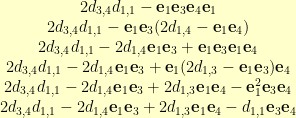
If we don’t have an orthogonal basis, then the best we can do is  . That is good enough. Suppose then we want to figure out so that none of the terms have subscripts out of order. For brevity, let me write
  to mean
  . The first things we see out of order are
  and . To swap those, we have to replace
  with
with  . Now, we have
  . With a little bit of algebra, this becomes
  . That last term is still not in order, so we still have more to do.
Whew. Now, to get that into code.
26 SLOC
In the end, I ended up with this 26 SLOC function that takes in a matrix dots to represent the dot product and some number of ordered lists of subscripts and returns a list of scalars where the scalar in spot  represents the coefficient in front of the ordered term where the
  -th basis vector is involved if the
  -th bit of is set. So, for the example we just did with the call
 (basis-multiply dots '(1 4) '(3) '(1)), the zeroth term in the result would be  . The fifth term (
 -th term) would be
  . The ninth term would be
  . The twelfth term would be
  . The rest of the terms would be zero.
From this, I will be able to build a function that multiplies arbitrary elements of the Clifford algebra. Getting to this point was the hard part for me. It is 26 SLOC that took me several weeks of study to figure out how to do on paper and about six hours of thinking to figure out how to do in code.
(defun basis-multiply (dots &rest xs)
(let ((len (expt 2 (array-dimension dots 0))))
(labels ((mul (&rest xs)
(let ((xs (combine-adjacent (remove nil xs))))
(cond
((null xs)
(vec len 0))
((null (rest xs))
(vec len (from-bits (first xs))))
(t
(destructuring-bind (x y . xs) xs
(let ((a (first (last x)))
(b (first y))
(x (butlast x))
(y (rest y)))
(if (= a b)
(combine-like x a y xs)
(swap-ab x a b y xs))))))))
(dot (a b)
(aref dots (1- a) (1- b)))
(combine-like (x a y xs)
;; X e1 e1 Y ... = (e1.e1) X Y ...
(vs (dot a a) (apply #'mul x y xs)))
(swap-ab (x a b y xs)
;; X e2 e1 Y ... = 2(e1.e2) X Y ... - X e1 e2 Y ...
(v- (vs (* 2 (dot a b)) (apply #'mul x xs))
(apply #'mul x (list b a) y xs))))
(apply #'mul xs))))
I had one false start on the above code where I accidentally confounded the lists that I was using as input with the lists that I was generating as output. I had to step back and get my code to push all of the work down the call stack while rolling out the recursion and only creating new vectors during the base cases of the recursion and only doing vector subtractions while unrolling the recursion.
There are also 31 SLOC involved in the combine-adjacent function (which takes a list like ((1 2 3) nil (4 5) (3)) and removes the nils then concatenates consecutive parts that are in order already to get ((1 2 3 4 5) (3))), the vec function (which makes a vector of a given length with a non-zero coefficient in a given location), the from-bits function (which turns a list of integers into a number with the bit set if  is in the list) and the little functions like
 vs and v- (which, respectively, scale a list of numbers by a factor and element-wise subtract two lists).
The 31 supporting SLOC were easy though. The 26 SLOC shown above represent the largest thought-to-code ratio of any code that I’ve ever written.
WO0T!!!t!1! or something!
Now, to Zig this SLOC for Great Justice!



 . So, if we’re going to match the curve exactly, we’ll need